Contacts hygiene
How to Find and Merge Duplicate Google Contacts
By Ayaan Motiwala · Published · Updated · Editorial review required after material product changes
Duplicates arrive in a Google account from more directions than most people expect: a phone restored from backup, a SIM import, a CSV someone emailed you, two accounts syncing to one device, and any bulk contact-saving run done without a duplicate check. The clean-up is straightforward. Keeping it clean afterwards is the part that needs a rule.
Step one: run Google's own merge tool
- 1
Open Google Contacts on a desktop browser
Go to contacts.google.com. The mobile apps expose a reduced version of this, and the desktop view gives you the full suggestion list and the undo controls.
- 2
Open 'Merge & fix'
It sits in the left sidebar and shows a count of duplicates Google has already detected. If it shows zero, Google has found no exact matches — which does not mean you have none.
- 3
Review before accepting
Skim the suggested pairs rather than hitting 'Merge all' straight away. Family members sharing a surname and a landline, or two genuinely different people with the same common name, are the pairs worth rejecting.
- 4
Merge the rest in one action
Once the list looks right, merge everything remaining. Each merge keeps all distinct numbers and emails from both entries.
- 5
Check the result on one contact
Open a merged contact and confirm both numbers survived. This takes ten seconds and tells you the merge behaved as expected before you rely on it.
Step two: the duplicates Google will never suggest
This is where most address books stay messy. Google's matcher is conservative, and conservative matching cannot see past formatting. All six rows below are the same person, and none of them matches the others as a string:
| Stored as | Why it happened | Matches `+919876543210`? |
|---|---|---|
+919876543210 | Saved from WhatsApp Web or an international source. | Yes — this is the reference form. |
+91 98765 43210 | Typed by hand with spacing. | No, as a plain string. |
09876543210 | Copied from a local directory with a trunk prefix. | No. |
9876543210 | Entered without a country code. | No. |
91-98765-43210 | Pasted from a spreadsheet with dashes. | No. |
+91 (98765) 43210 | Imported from a CRM export. | No. |
Six stored forms of one Indian mobile number, none of which match each other textually.
The fix is to standardise on one form — E.164, the international format: a +, the country code, then the number, with no spaces, dashes or brackets. Once every entry is written that way, the duplicates collapse into exact matches and Google's own tool can see them.
Free tool · no sign-up
Phone Number Formatter
Clean up a messy list of numbers into proper international format, and see which ones look wrong.
If you are working from an exported list rather than directly in Google Contacts, strip the duplicates before importing anything. Doing it in the file is far less work than un-merging afterwards.
Free tool · no sign-up
Duplicate Phone Number Remover
Strip duplicates from a list of numbers — matching across formats, so the same number written two ways counts once.
Step three: stop new duplicates appearing
Clean-up is a one-off; prevention is a habit. Four rules cover almost every case:
- Save to one account. Pick the Google account that owns your address book and save everything there. Contacts split across a personal and a work account are the most common source of permanent duplicates, because the two accounts never compare against each other.
- Always store the country code. A number without one cannot be matched reliably and will not dial from abroad. Why the country code matters covers the rules per region.
- Avoid CSV round-trips. Every export-edit-import cycle is an opportunity to create a second copy of everything. Writing contacts directly through the Google API skips the step where duplicates are created.
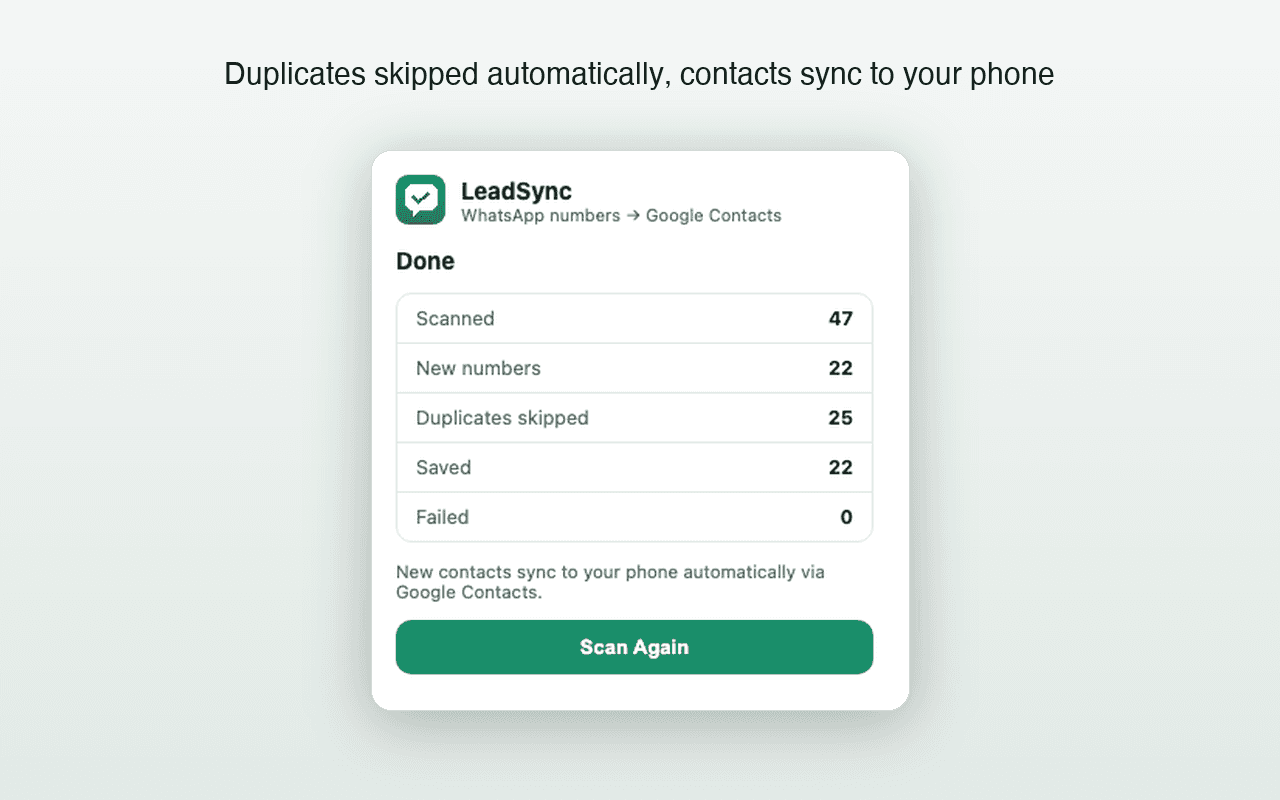
- Use a saver that checks before it writes. LeadSync compares each normalised number against the connected Google Contacts account and skips what is already there, so repeat scans over the same chat list add nothing the second time.
What to check after a bulk save
- 1Open Merge & fix once. A bulk save that skipped correctly should surface few or no new suggestions.
- 2Search for your naming prefix (for example the group name you used) to see exactly what the run created, as a single reviewable list.
- 3Spot-check five contacts for the full international number rather than a local fragment.
- 4If the new contacts have not reached your phone yet, that is a sync question rather than a duplicate one — the sync checklist covers Android and iPhone.
Save new numbers without creating duplicates
LeadSync checks every number against your connected Google Contacts before writing it. First 35 contacts free, no card required.
Frequently asked questions
Why doesn't Google suggest merging contacts I can see are the same?
Google's merge suggestions lean on matching names and exactly matching numbers. Two entries for the same person stored as 09876543210 and +91 98765 43210 do not match as strings, so they are not suggested. Normalising both to the same international format is what makes them visible to the matcher.
Does merging contacts delete any information?
No. A merge combines the fields of both entries and keeps every distinct phone number, email and note. You end up with one contact holding both numbers rather than losing one.
Can I undo a merge?
Google Contacts keeps an undo window immediately after a merge, and separately lets you restore the whole address book to an earlier state from the last 30 days. Use the restore option if you merged a large batch and want to reverse it.
Does LeadSync create duplicate contacts?
It checks each number against the connected Google Contacts account and its own local save history before writing, and skips matches. It compares normalised numbers, so differing formats of the same number are treated as one. You should still review results, because any automated comparison depends on how complete the source data is.
Keep reading
Reference
WhatsApp Number Formats: Country Codes, E.164 and What Breaks
Why 09876543210 and +919876543210 behave differently, what E.164 is, and the formatting rules that keep saved contacts working.
High-volume guide
How to Bulk Save WhatsApp Contacts to Google Contacts
Verified limits, batching behavior, duplicate checks, and an honest answer about saving hundreds or 1,000 contacts.
Reference
Google Contacts Limits: How Many Contacts Can You Store?
Contacts per account, per-contact field caps, import file limits and People API quotas, plus which one you will actually hit first.