iPhone
How to Save WhatsApp Contacts on iPhone Without Typing Them
By Ayaan Motiwala · Published · Updated · Editorial review required after material product changes
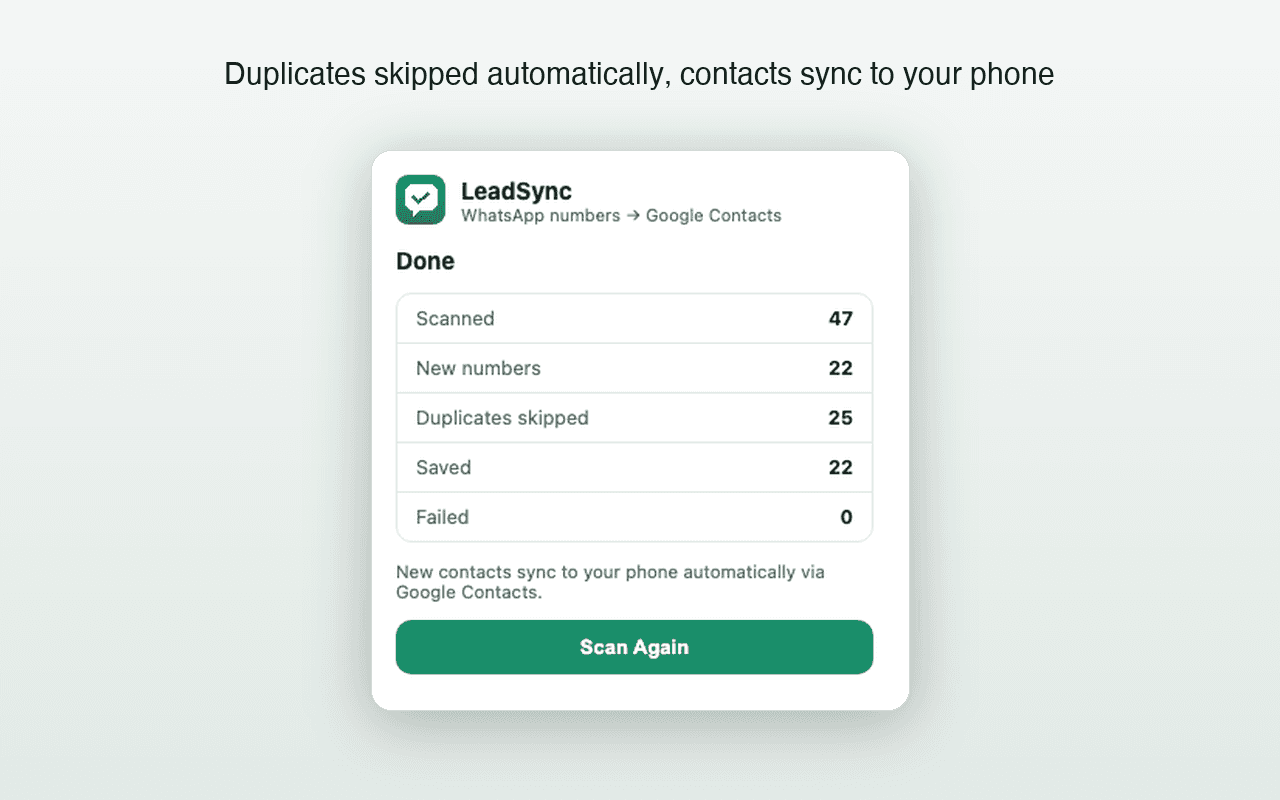
iPhone takes one more step than Android, because iOS does not assume Google owns your address book. Once that step is done the workflow is identical and you never have to repeat it.
Step one: add the Google account as a contacts source
- 1
Open the Contacts accounts settings
On iOS 18 and later: Settings, Apps, Contacts, Contacts Accounts. On older versions: Settings, Contacts, Accounts.
- 2
Add the Google account
Choose Add Account, then Google, and sign in to the account that will hold the contacts. iOS connects over CardDAV; there is nothing to install.
- 3
Turn the Contacts toggle on
This is the step that actually matters. Mail is often enabled by default while Contacts is not, and an account added for Mail alone will never deliver a single contact.
- 4
Pick the default account deliberately
In Contacts settings, set Default Account to whichever account new contacts you create on the phone should go to. Leaving it on iCloud is fine — it only affects contacts you add by hand on the device.
- 5
Confirm the account appears in Groups
Open the Contacts app and tap Groups at the top left. The Google account should be listed and ticked. If it is not ticked, its contacts are present but hidden from the list.
Step two: save the WhatsApp numbers
This happens on a desktop, not on the phone, because a browser extension can read what WhatsApp Web has rendered while an iPhone app cannot:
- 1
Open WhatsApp Web in Chrome on a desktop
Link it to your iPhone as usual, and keep the phone online so the session mirrors your chats.
- 2
Scroll the chat list to the bottom
Unscrolled chats are not rendered into the page and therefore cannot be read by anything. This is the step that determines how many numbers a run finds.
- 3
Connect the same Google account you added to iOS
LeadSync writes through the Google People API with your own sign-in. It must be the account the iPhone is syncing contacts from, or the contacts will be saved somewhere the phone never looks.
- 4
Choose a naming prefix, then Scan & Save
Unknown numbers arrive with no name, so a prefix and sequence —
Lead 001onwards — keeps them findable. Numbers already in that Google account are skipped. - 5
Wait for iOS to sync, or pull to refresh
Open the Contacts app and pull down on the list to force a refresh. Contacts normally appear within a few minutes.
The iCloud caveat, stated plainly
Contacts saved into a Google account are Google contacts. The iPhone displays them and WhatsApp can read them, but they are not in iCloud. Two consequences:
- They will not appear on an iPad or Mac unless that device also has the Google account added as a contacts source.
- An iCloud backup does not back them up — though they are already backed up, in Google, which is arguably the stronger position.
If you want everything consolidated in iCloud instead, export from Google Contacts as vCard and import that into iCloud. It is a manual one-off, and the trade-off is that you lose the direct-sync workflow for future saves. How the formats differ.
When the contacts do not appear
| Symptom | Likely cause and fix |
|---|---|
| Nothing appears at all | The Contacts toggle is off for the Google account. Settings, Apps, Contacts, Contacts Accounts, select the account, enable Contacts. |
| The account is listed but shows no contacts | The group is unticked. Contacts app, Groups, tick the Google account. |
| Contacts appear on the web but not the phone | Sync has not run. Pull to refresh in the Contacts app; if still absent, remove and re-add the account. |
| WhatsApp still shows raw numbers | WhatsApp caches the address book. Force-quit and reopen WhatsApp, and confirm it has Contacts permission in Settings. |
| Contacts saved to the wrong account | The saver was connected to a different Google account than the phone syncs. Check both, then re-run — duplicate checking makes that safe. |
| Names show for some numbers, not others | Expected. Only numbers that reached the address book resolve to names; the rest are still unknown to the phone. |
iPhone contact sync problems and their usual cause.
If the contacts genuinely are not in Google Contacts on the web, the problem is upstream of iOS and the full sync troubleshooting guide is the right place to continue.
Set it up once, then it just works
After the Google account is added to iOS, every future save reaches your iPhone on its own. First 35 contacts free, no card required.
Frequently asked questions
Can I bulk save WhatsApp contacts from the iPhone app?
No. WhatsApp for iOS has no multi-select contact saving, and iOS does not let one app read another app's rendered screen, so no third-party iPhone app can do it either. The bulk route is WhatsApp Web on a desktop, with the results reaching the phone through a synced contacts account.
Do I need iCloud for this?
No. iOS supports several contacts accounts at once, so a Google account added as a contacts source sits happily alongside iCloud. You do not have to move anything out of iCloud or choose between them.
Will the contacts also appear in iCloud?
No, and that is worth knowing. Contacts saved to a Google account live in that account. They display on the iPhone and WhatsApp can read them, but they are not copied into iCloud and will not sync to other Apple devices unless those devices also have the Google account added.
Why is Contacts greyed out when I add my Google account?
Usually because the account was added for Mail only, or because a device-management profile restricts it. Remove and re-add the account from Settings, Apps, Contacts, Accounts and enable the Contacts toggle during setup.
Keep reading
Android
How to Save WhatsApp Contacts on Android (Without Typing Them)
Why Android's contact list is really Google Contacts, how to use that, and the sync settings that decide whether new contacts appear.
Troubleshooting
Google Contacts Not Syncing After a WhatsApp Save?
A practical Android and iPhone checklist for contacts that exist in Google but have not appeared on the phone.
Migration
How to Transfer WhatsApp Contacts to a New Phone
Why WhatsApp has no contact list of its own, which contacts silently fail to move, and how to catch the unsaved numbers before you switch.